Connect website forms
Centerflow makes it easy to connect your website forms so every submission becomes a tracked lead. Once a form is connected, new submissions will automatically appear in your lead overview.
1. Accessing form integrations
To connect a new form (or manage existing ones):
Go to your Centerflow account.
Click the settings gear icon in the bottom-left corner.
Choose the website you want to manage.
Navigate to Form integrations.
2. Adding a new form
Click Add form.
Paste the URL of the page where your form is located.
Centerflow will scan this page and detect all available forms.
Choosing the right form
Identify the correct form using its Form ID.
Multiple forms may appear, for example:
A footer newsletter sign-up form.
Separate mobile and desktop versions of the same form.
If the Form ID is the same, you only need to connect the form once, even if it appears on multiple pages.
Click Connect next to the correct form to start the integration.
3. Configuring your form
After connecting, you’ll see settings for how submissions should appear in Centerflow:
Name → The form name shown in your lead overview and in individual leads.
Deal Value (optional) → If this form always generates leads with a fixed value, you can add it here.
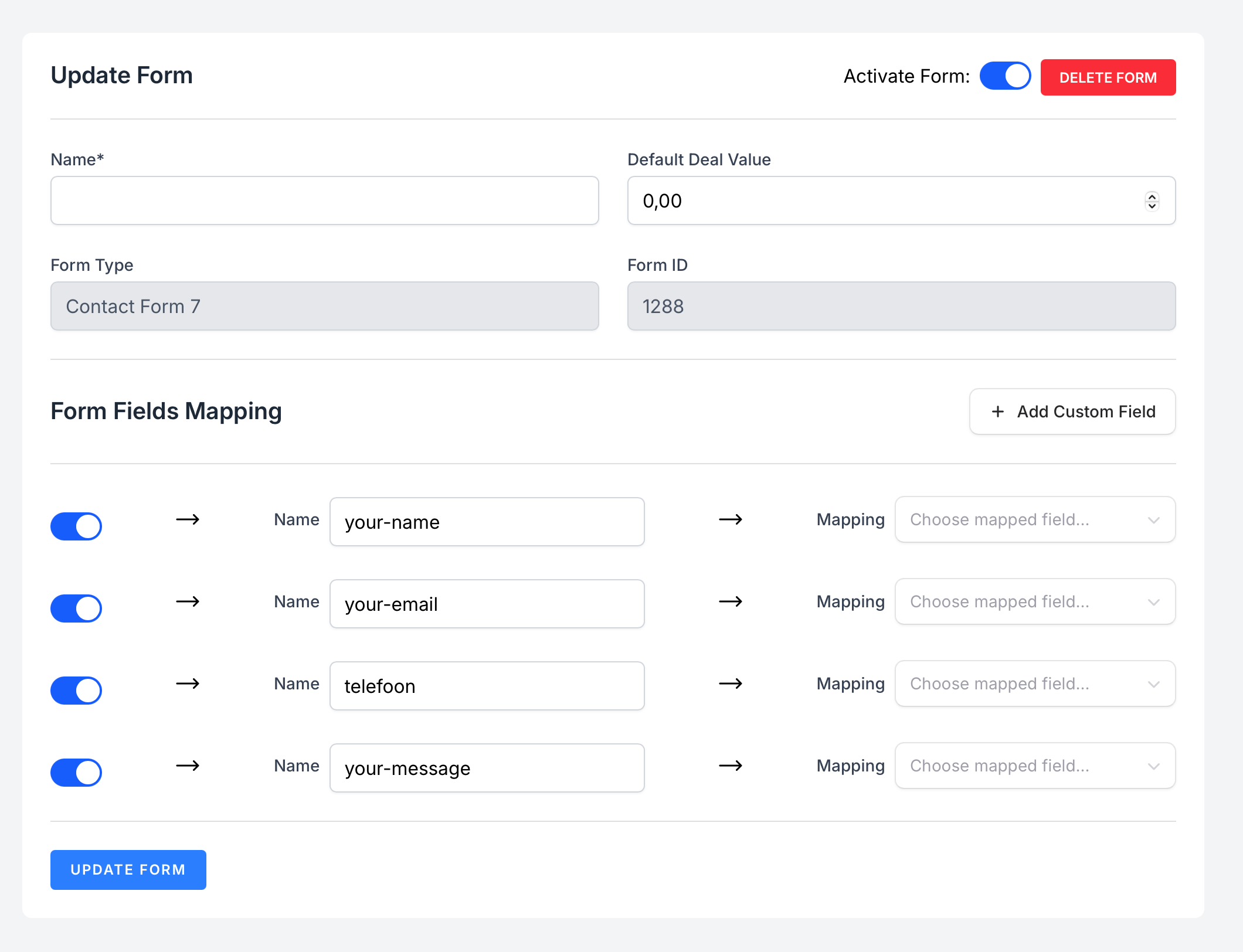
4. Mapping form fields
Mapping ensures that data from your form is stored consistently across all your leads.
Standard fields
You can map form inputs to standard Centerflow fields:
First Name
Last Name
Email
Phone
Company
Street
Street Number
Zipcode
City
Country
Adding custom fields
If your form contains extra fields not listed above:
Click Add Custom Field.
Define the field name once, and it becomes available for all other forms in your account.
5. Save and start tracking
Once all fields are mapped, click Update form. From now on, every new submission will automatically appear in Centerflow with the correct structure.
💡 Tip: Always map at least the Email field. This allows Centerflow to recognize returning leads and attribute them correctly across campaigns.
Was this helpful?
Still need help? Ask the team